Chapter 08 — PIM Self-Request with Approval
Chapter 08 — PIM Self-Request with Approval
An eligible role is only as safe as the moment it turns active, so that moment needs fresh proof, a reason, a second person and a record that outlives the audit window.
How to build and run one Privileged Identity Management (PIM) configuration: administrative roles held as eligible only, activated by the holder’s own request, and released only after an approver from outside the holder’s tier approves. The prerequisites, the activation and assignment controls, the build in order (emergency accounts first), the Microsoft Graph equivalents, notifications, alerts, access reviews and log export, the day-to-day requester and approver paths, and the evidence, tests and control mapping an assessor will ask for.
Chapter 04 placed every administrative role in a privilege tier and put each role on a role-assignable group. This chapter builds the gate a member passes to use that role. Appendix B gives each role’s settings; Book 02, Chapter 09 covers PIM basics and the AD-to-Entra role mapping.
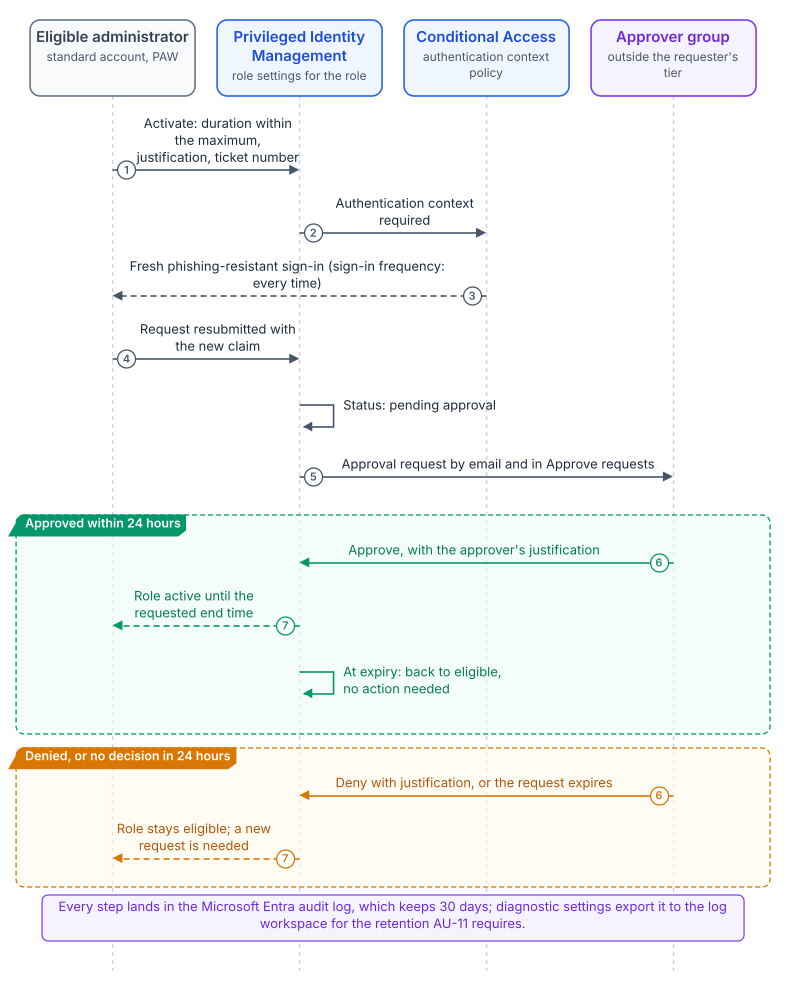
“Self-request” has two layers, and an agency can run either or both. Self-request for eligibility is a person asking to become eligible for a role, decided in entitlement management through an access package for the role-assignable group (Chapter 09); it answers may this person ever hold this role? Self-request for activation is an already-eligible person asking to turn the role on for a bounded window, decided in PIM; it answers may this person use this role right now? Microsoft’s guidance for the DoD Zero Trust user pillar treats them as composable: approval when users request eligibility in entitlement management, approval upon activation in PIM, or both.1 This chapter builds the second layer. It’s the one that produces a per-use, time-bounded, individually justified record of privileged use, which is what AC-6(9) and AC-17(4) are tested against. Eligibility without an activation gate is standing privilege through a nicer front door; if an agency runs only one layer, it should run this one.
Prerequisites
| Requirement | Detail |
|---|---|
| License | Microsoft Entra ID P2 or Microsoft Entra ID Governance. Licenses are needed for eligible and time-bound assignees, for approvers, and for reviewers and the users they review.2 |
| Role to configure PIM | Privileged Role Administrator is the least-privileged role for assigning Microsoft Entra roles in PIM and configuring their role settings.34 |
| Role to read PIM alerts and audit | Alerts: Global Administrator, Privileged Role Administrator, Global Reader, Security Administrator or Security Reader.5 Viewing PIM audit activity: at least Security Reader.6 |
| Microsoft Graph permissions | RoleManagementPolicy.ReadWrite.Directory to update role settings (rules).7 RoleEligibilitySchedule.ReadWrite.Directory is the least-privileged permission to create eligibility requests; RoleManagement.ReadWrite.Directory also works but grants more. Delegated writes also need the signed-in user to hold Privileged Role Administrator.8 |
| Phishing-resistant MFA | Registered for every eligible administrator. PIM’s activation requirement isn’t a substitute for the tenant-wide authentication policies in Chapter 07. |
| Log destination | A Log Analytics workspace, and a storage account where required, inside the authorization boundary, for retention beyond 30 days (Step 9). |
| Government cloud | Microsoft Entra ID Governance, which carries PIM, is available in GCC, GCC High and the Department of Defense cloud environments.9 Confirm any specific capability on that page for the agency’s cloud before designing against it. |
When a P2, Governance or trial license expires, permanent role assignments are unaffected, but PIM stops serving activation and privileged-access management in the admin center, Graph and PowerShell; eligible Microsoft Entra role assignments are removed; ongoing access reviews of Entra roles end; PIM configuration settings are removed; and PIM stops sending email about assignment changes.10 The approval gate is only as durable as the subscription behind it. Treat a license expiry as a configuration-management event with control impact, and keep the role inventory exported (Chapter 10) so the eligible assignments can be restored.
The target design
Eligible, not active
PIM gives every role assignment one of two states. An active assignment is effective now; anyone who captures the holder’s session captures the privilege. An eligible assignment isn’t effective until the holder activates it, meeting whatever the role’s settings require, for a time-limited window; at expiry it reverts to eligible.11 The program holds every human administrative assignment as eligible. Active assignments are reserved for the emergency access accounts of Step 0 and for service principals that can’t perform an activation.
The activation controls
Microsoft calls a role’s PIM settings role settings; Microsoft Graph calls them rules of a role management policy; both are sometimes called PIM policies. They’re defined per role: each role’s settings are independent of every other role’s, and every assignment of a role follows that role’s settings.12
| Control | What it does | What matters for a federal build |
|---|---|---|
| Activation maximum duration | Caps how long an activation lasts | One to 24 hours.13 This is the exposure window; set it to the shortest window the work needs |
| On activation, require multifactor authentication | Requires MFA before activation | Users might not be prompted if they authenticated with strong credentials or provided MFA earlier in the session.14 It doesn’t prove anything at activation time |
| On activation, require Microsoft Entra Conditional Access authentication context | Sends the activation through a Conditional Access policy that targets the context | The way to force a fresh, method-specific, device-conditioned proof (Step 2) |
| Require justification on activation | Free-text business reason | Recorded in the request and the audit log; it’s what makes an activation reviewable |
| Require ticket information on activation | A support ticket number and system | Information only; Entra doesn’t check it against any ticketing system.15 Enforced correlation belongs in the SIEM or ITSM |
| Require approval to activate | Holds the activation until an approver approves | Approvers are users or groups; at least one is required and Microsoft recommends at least two16 |
Microsoft’s recommendation, when the goal is authentication during activation, is the authentication context combined with an authentication strength.17 The program selects the authentication context for every role (Appendix B), which keeps Book 02’s rule that every activation requires the phishing-resistant context (Book 02, Chapter 09).
The assignment controls
Six further settings govern how assignments are made rather than how they’re activated: allow permanent eligible assignment, expire eligible assignment after, allow permanent active assignment, expire active assignment after, require multifactor authentication on active assignment, and require justification on active assignment.18 They stop a well-built activation gate from being bypassed by simply granting someone a permanent active assignment.
| Setting | Program posture |
|---|---|
| Permanent eligible assignment | Not allowed. Eligibility expires after the tier’s window (90, 180 or 365 days; Appendix B), forcing re-authorization in addition to reviews. Book 02’s ceiling of 12 months holds |
| Permanent active assignment | Not allowed, except Global Administrator for the emergency access accounts. Active assignments for service principals are documented in the system security plan with a rationale |
| MFA and justification on active assignment | Both required. PIM can’t apply an activation requirement to someone who is already active, so the enforcement point for active assignments is the moment they’re made |
Settings by tier
The tiers in Chapter 04 decide the values. In summary:
| Tier | Max activation | On activation | Justification | Ticket | Approval | Eligibility expiry |
|---|---|---|---|---|---|---|
| T0, control plane | 4 hours | Authentication context c1 |
Required | Required | Required: PIM-Approvers-T0 |
90 days |
| T1, management plane | 8 hours | Authentication context c1 |
Required | Required | Required: PIM-Approvers-T1 |
180 days |
| T2, scoped operations | 8 hours | Authentication context c1 |
Required | Required | Optional, with a documented risk acceptance per role | 180 days |
| Read-only | 8 hours | Authentication context c1 |
Required | Optional | Not required | 365 days |
Appendix B lists each role’s values, approvers and notification recipients, and records where they tighten the table in Book 02, Chapter 09.
Build
Work the steps in order. Step 0 isn’t optional and can’t be moved: configuring approval before emergency access accounts exist is the one sequence that can lock an agency out of its own tenant.
Step 0 — Establish emergency access accounts first
Microsoft documents a tenant lockout this build can cause. It occurs when all of these are true: every Privileged Role Administrator and Global Administrator assignment is eligible and none is active; approval is required for activation; and no approvers are configured, so the default approvers (active Privileged Role and Global Administrators) don’t exist.19 Avoid it with both halves of the fix: emergency access accounts with permanent active Global Administrator, and explicitly named approvers on every role that requires approval.
Create and test the emergency access accounts to the standard in Chapter 04 before touching any role setting: two or more cloud-only accounts on *.onmicrosoft.com, permanent active Global Administrator, phishing-resistant authentication, excluded from Conditional Access policies that block or restrict sign-in, alerted on every use, and validated at least every 90 days.20 Validate them again after any change to Conditional Access, authentication methods policy or the PIM settings built below.
Step 1 — Build the approver groups
Approvers can be users or groups.21 Use groups: people leave, and a policy that names a departed employee has a broken approval path. Create one approver group per tier that requires approval, PIM-Approvers-T0 and PIM-Approvers-T1 (and PIM-Approvers-T2 where a Tier 2 role requires approval), and populate them by the separation rules in Approver design and separation of duties.
Three properties of the approval engine shape the design:
- Approvers don’t need to hold any role. The authority to approve is independent of the approver’s own privilege.22 That’s what makes a non-administrative oversight function, such as the security office, possible as the Tier 0 approver.
- Approvers can’t approve their own activation requests, and service principals can’t approve at all.23 Self-approval is blocked by the platform, not by procedure, which is worth stating in the system security plan.
- Approvers need a license. Users who approve or reject activation requests need P2 or Governance.24
Step 2 — Build the authentication context and its policy
For privileged roles “require MFA on activation” isn’t enough, because an earlier sign-in can satisfy it.25 The program’s objective is a fresh, phishing-resistant proof from a managed device at the moment of elevation, so it uses an authentication context. The order matters: Microsoft requires the Conditional Access policy to exist and be enabled before the context is selected in PIM.26
- Create authentication context
c1, display nameFMP-PIM-Activation. Authentication contexts are labelsc1toc99(Chapter 03). - Create the Conditional Access policy for it,
PIM-Activation-c1, targeting the authentication context, all users (or the eligible population), and excluding the emergency access group. Grant: authentication strengthFMP-Privileged-SeparateDevice(Appendix A) and compliant device. Session: sign-in frequency, Every time, which forces reauthentication on every activation.27 Turn it On; report-only doesn’t count. - Only then select
c1in each role’s settings (Steps 3 and 4).
Constraints to design around:28
- Don’t scope the policy to both the authentication context and a directory role. At activation time the user doesn’t hold the role yet, so a role-scoped policy wouldn’t apply.
- The fallback isn’t a safety net. If no Conditional Access policy targets the context selected in PIM, activation falls back to requiring MFA. The fallback doesn’t trigger if the policy is off, in report-only mode, or excludes the eligible user. It exists to catch a build-order mistake.
- A 10-minute window follows reauthentication. Another eligible activation inside it doesn’t prompt again; the window spans Microsoft Entra roles, Azure resource roles and PIM for Groups.
- The context governs activation, not use. A user could activate from a compliant device and use the role from another. The program closes that with the persona policies in Chapter 07 (CA003, CA004 and CA025, the PAW block), which apply to every privileged sign-in; Microsoft’s alternative is a second policy targeting directory roles.
Once PIM points at c1, whoever can edit Conditional Access, the Conditional Access Administrator and Security Administrator roles, can weaken the requirement, remove it, or block eligible users from activating. Microsoft says to treat those roles as highly privileged.29 The program puts them in Tier 0 (Chapter 04) behind this same gate, and closes the loop with protected actions (Step 6).
Chapter 07’s library doesn’t yet number this policy; it belongs in Wave 2 with the administrator policies.
Step 3 — Configure role settings in the admin center
For each role in Appendix B:
- Sign in to the Microsoft Entra admin center as at least a Privileged Role Administrator.
- Browse to ID Governance > Privileged Identity Management > Microsoft Entra roles > Roles, select the role, then Role settings > Edit.30
- On Activation: set the maximum duration; under On activation, require, select the Conditional Access authentication context
c1; turn on justification and ticket information; turn on Require approval to activate and select the tier’s approver group. - On Assignment: turn off permanent eligible and permanent active assignment, set the expiry, and require MFA and justification on active assignment.
- On Notifications: set recipients (Step 7).
- Select Update.
If approval is required and no approvers are selected, active Privileged Role Administrators and Global Administrators become the default approvers.31 That is exactly the population this design keeps eligible, which is how the Step 0 lockout arises. Name the approver group explicitly every time.
Step 4 — Configure role settings with Microsoft Graph
The admin center works for one role and not for thirty. In Graph, each directory role at tenant scope is assigned one role management policy, and its settings are that policy’s rules. Each policy has 17 rules.32 Chapter 10 keeps them as code.
The requests and script in this chapter are reference implementations written against current Microsoft Graph and Microsoft Graph PowerShell. They haven’t been run against a production tenant. Review them, dry-run them with -WhatIf in a test tenant, and adapt the values marked CONFIGURE before running them anywhere that matters.
Find the policy for a role
Resolve the policyId from the role’s immutable template ID (Appendix B lists them):33
GET https://graph.microsoft.com/v1.0/policies/roleManagementPolicyAssignments?$filter=scopeId eq '/' and scopeType eq 'DirectoryRole' and roleDefinitionId eq '9b895d92-2cd3-44c7-9d02-a6ac2d5ea5c3'The response carries the assignment id and the policyId; use the policyId from here on.
The rules this build touches
| Rule ID | Tab | What it sets |
|---|---|---|
Expiration_EndUser_Assignment |
Activation | Activation maximum duration |
Enablement_EndUser_Assignment |
Activation | Justification, MFA and ticket on activation |
AuthenticationContext_EndUser_Assignment |
Activation | The authentication context required on activation |
Approval_EndUser_Assignment |
Activation | The approval requirement and approvers |
Expiration_Admin_Eligibility |
Assignment | Expiry of eligible assignments |
Expiration_Admin_Assignment |
Assignment | Expiry of active assignments |
Enablement_Admin_Assignment |
Assignment | MFA and justification when an administrator makes an active assignment |
Notification_{Admin,Requestor,Approver}_{Admin_Eligibility,Admin_Assignment,EndUser_Assignment} |
Notifications | The nine notification rules |
Rule IDs and shapes are from Microsoft’s rules mapping guide.34 Every PATCH must include the @odata.type of the derived rule type, and a successful update returns 204 No Content.35
Require approval from a named group
PATCH https://graph.microsoft.com/v1.0/policies/roleManagementPolicies/{policyId}/rules/Approval_EndUser_Assignment
Content-Type: application/json

{
  "@odata.type": "#microsoft.graph.unifiedRoleManagementPolicyApprovalRule",
  "id": "Approval_EndUser_Assignment",
  "target": {
    "@odata.type": "microsoft.graph.unifiedRoleManagementPolicyRuleTarget",
    "caller": "EndUser",
    "operations": [ "All" ],
    "level": "Assignment",
    "inheritableSettings": [],
    "enforcedSettings": []
  },
  "setting": {
    "@odata.type": "microsoft.graph.approvalSettings",
    "isApprovalRequired": true,
    "isApprovalRequiredForExtension": false,
    "isRequestorJustificationRequired": true,
    "approvalMode": "SingleStage",
    "approvalStages": [
      {
        "approvalStageTimeOutInDays": 1,
        "isApproverJustificationRequired": true,
        "escalationTimeInMinutes": 0,
        "primaryApprovers": [
          {
            "@odata.type": "#microsoft.graph.groupMembers",
            "groupId": "<PIM-Approvers-T0 object ID>"
          }
        ],
        "isEscalationEnabled": false,
        "escalationApprovers": []
      }
    ]
  }
}
isApproverJustificationRequired: true puts the approver’s reasoning in the record, not only the requester’s; keep it on, so the approval is evidence of a decision rather than of a click. approvalMode stays SingleStage: multi-step approval isn’t supported for Microsoft Entra roles.36
Require the authentication context, justification and ticket
PATCH https://graph.microsoft.com/v1.0/policies/roleManagementPolicies/{policyId}/rules/AuthenticationContext_EndUser_Assignment
Content-Type: application/json

{
  "@odata.type": "#microsoft.graph.unifiedRoleManagementPolicyAuthenticationContextRule",
  "id": "AuthenticationContext_EndUser_Assignment",
  "isEnabled": true,
  "claimValue": "c1",
  "target": {
    "@odata.type": "microsoft.graph.unifiedRoleManagementPolicyRuleTarget",
    "caller": "EndUser",
    "operations": [ "All" ],
    "level": "Assignment",
    "inheritableSettings": [],
    "enforcedSettings": []
  }
}
PATCH https://graph.microsoft.com/v1.0/policies/roleManagementPolicies/{policyId}/rules/Enablement_EndUser_Assignment
Content-Type: application/json
{
"@odata.type": "#microsoft.graph.unifiedRoleManagementPolicyEnablementRule",
"id": "Enablement_EndUser_Assignment",
"enabledRules": [ "Justification", "Ticketing" ],
"target": {
"@odata.type": "microsoft.graph.unifiedRoleManagementPolicyRuleTarget",
"caller": "EndUser",
"operations": [ "All" ],
"level": "Assignment",
"inheritableSettings": [],
"enforcedSettings": []
}
}The authentication context rule takes isEnabled and claimValue.37 The program leaves MultiFactorAuthentication out of enabledRules because the context’s policy already demands a stronger, fresh proof; a role configured without a context would list "Justification", "MultiFactorAuthentication", "Ticketing".
Cap the activation window and bound eligibility
PATCH https://graph.microsoft.com/v1.0/policies/roleManagementPolicies/{policyId}/rules/Expiration_EndUser_Assignment
Content-Type: application/json

{
  "@odata.type": "#microsoft.graph.unifiedRoleManagementPolicyExpirationRule",
  "id": "Expiration_EndUser_Assignment",
  "isExpirationRequired": true,
  "maximumDuration": "PT4H",
  "target": {
    "@odata.type": "microsoft.graph.unifiedRoleManagementPolicyRuleTarget",
    "caller": "EndUser",
    "operations": [ "All" ],
    "level": "Assignment",
    "inheritableSettings": [],
    "enforcedSettings": []
  }
}
PATCH https://graph.microsoft.com/v1.0/policies/roleManagementPolicies/{policyId}/rules/Expiration_Admin_Eligibility
Content-Type: application/json
{
"@odata.type": "#microsoft.graph.unifiedRoleManagementPolicyExpirationRule",
"id": "Expiration_Admin_Eligibility",
"isExpirationRequired": true,
"maximumDuration": "P90D",
"target": {
"@odata.type": "microsoft.graph.unifiedRoleManagementPolicyRuleTarget",
"caller": "Admin",
"operations": [ "All" ],
"level": "Eligibility",
"inheritableSettings": [],
"enforcedSettings": []
}
}Applying a tier’s settings across roles
The script applies one tier’s settings to a list of roles. Get-MgPolicyRoleManagementPolicyAssignment and Update-MgPolicyRoleManagementPolicyRule are in the Microsoft.Graph.Identity.SignIns module.38 The script honors -WhatIf.
#Requires -Modules Microsoft.Graph.Identity.SignIns

<#
.SYNOPSIS
    Apply an FMP privilege-tier PIM policy (approval, authentication context,
    justification, ticket, duration, eligibility expiry) to Microsoft Entra roles.

.DESCRIPTION
    Resolves each role's role management policy from its immutable template ID,
    then updates the five rules that make up the approval gate. Re-running with
    the same inputs leaves the settings unchanged.

.NOTES
    Least-privileged role: Privileged Role Administrator.
    Connect first:
        Connect-MgGraph -Scopes 'RoleManagementPolicy.ReadWrite.Directory'
#>
[CmdletBinding(SupportsShouldProcess, ConfirmImpact = 'High')]
param(
    # CONFIGURE: the template IDs of the roles in one tier (Appendix B).
    [Parameter(Mandatory)]
    [string[]] $RoleTemplateId,

    # CONFIGURE: object ID of the tier's approver group (Step 1).
    [Parameter(Mandatory)]
    [string] $ApproverGroupId,

    # Maximum activation window, ISO 8601, 1 to 24 hours.
    [ValidatePattern('^PT([1-9]|1[0-9]|2[0-4])H$')]
    [string] $MaxActivationDuration = 'PT4H',

    # Maximum eligible-assignment lifetime, ISO 8601.
    [string] $MaxEligibilityDuration = 'P90D',

    # Authentication context required on activation (Step 2).
    [string] $AuthenticationContext = 'c1'
)

begin {
    function New-PimRuleTarget {
        param(
            [ValidateSet('EndUser', 'Admin')][string] $Caller = 'EndUser',
            [ValidateSet('Assignment', 'Eligibility')][string] $Level = 'Assignment'
        )
        @{
            '@odata.type'       = 'microsoft.graph.unifiedRoleManagementPolicyRuleTarget'
            caller              = $Caller
            operations          = @('All')
            level               = $Level
            inheritableSettings = @()
            enforcedSettings    = @()
        }
    }

    # Activation rules apply to the end user activating their own eligible
    # assignment; the eligibility-expiry rule applies to the admin who assigns it.
    $activationTarget  = New-PimRuleTarget -Caller 'EndUser' -Level 'Assignment'
    $eligibilityTarget = New-PimRuleTarget -Caller 'Admin'   -Level 'Eligibility'

    function Resolve-PimPolicyId {
        param([Parameter(Mandatory)][string] $TemplateId)

        $filter = "scopeId eq '/' and scopeType eq 'DirectoryRole' and " +
                  "roleDefinitionId eq '$TemplateId'"
        $assignment = Get-MgPolicyRoleManagementPolicyAssignment -Filter $filter -ErrorAction Stop

        if (-not $assignment) {
            throw "No role management policy assignment found for template ID $TemplateId."
        }
        # A directory role at tenant scope resolves to exactly one policy.
        return $assignment[0].PolicyId
    }

    function Set-PimRule {
        param(
            [Parameter(Mandatory)][string]    $PolicyId,
            [Parameter(Mandatory)][string]    $RuleId,
            [Parameter(Mandatory)][hashtable] $Body
        )
        Update-MgPolicyRoleManagementPolicyRule `
            -UnifiedRoleManagementPolicyId     $PolicyId `
            -UnifiedRoleManagementPolicyRuleId $RuleId `
            -BodyParameter                     $Body `
            -ErrorAction                       Stop
    }
}

process {
    foreach ($templateId in $RoleTemplateId) {

        $policyId = Resolve-PimPolicyId -TemplateId $templateId

        if (-not $PSCmdlet.ShouldProcess(
                "role $templateId (policy $policyId)",
                "Apply tier policy: approval by $ApproverGroupId, context $AuthenticationContext, max $MaxActivationDuration")) {
            continue
        }

        # 1. Require approval, routed to the approver group.
        Set-PimRule -PolicyId $policyId -RuleId 'Approval_EndUser_Assignment' -Body @{
            '@odata.type' = '#microsoft.graph.unifiedRoleManagementPolicyApprovalRule'
            id            = 'Approval_EndUser_Assignment'
            target        = $activationTarget
            setting       = @{
                '@odata.type'                    = 'microsoft.graph.approvalSettings'
                isApprovalRequired               = $true
                isApprovalRequiredForExtension   = $false
                isRequestorJustificationRequired = $true
                approvalMode                     = 'SingleStage'
                approvalStages                   = @(
                    @{
                        approvalStageTimeOutInDays      = 1
                        isApproverJustificationRequired = $true
                        escalationTimeInMinutes         = 0
                        isEscalationEnabled             = $false
                        escalationApprovers             = @()
                        primaryApprovers                = @(
                            @{
                                '@odata.type' = '#microsoft.graph.groupMembers'
                                groupId       = $ApproverGroupId
                            }
                        )
                    }
                )
            }
        }

        # 2. Require the authentication context on activation.
        Set-PimRule -PolicyId $policyId -RuleId 'AuthenticationContext_EndUser_Assignment' -Body @{
            '@odata.type' = '#microsoft.graph.unifiedRoleManagementPolicyAuthenticationContextRule'
            id            = 'AuthenticationContext_EndUser_Assignment'
            isEnabled     = $true
            claimValue    = $AuthenticationContext
            target        = $activationTarget
        }

        # 3. Require justification and ticket information on activation.
        #    Ticket information is recorded but not validated by Entra.
        Set-PimRule -PolicyId $policyId -RuleId 'Enablement_EndUser_Assignment' -Body @{
            '@odata.type' = '#microsoft.graph.unifiedRoleManagementPolicyEnablementRule'
            id            = 'Enablement_EndUser_Assignment'
            enabledRules  = @('Justification', 'Ticketing')
            target        = $activationTarget
        }

        # 4. Cap the activation window.
        Set-PimRule -PolicyId $policyId -RuleId 'Expiration_EndUser_Assignment' -Body @{
            '@odata.type'        = '#microsoft.graph.unifiedRoleManagementPolicyExpirationRule'
            id                   = 'Expiration_EndUser_Assignment'
            isExpirationRequired = $true
            maximumDuration      = $MaxActivationDuration
            target               = $activationTarget
        }

        # 5. Bound how long an eligible assignment may live.
        Set-PimRule -PolicyId $policyId -RuleId 'Expiration_Admin_Eligibility' -Body @{
            '@odata.type'        = '#microsoft.graph.unifiedRoleManagementPolicyExpirationRule'
            id                   = 'Expiration_Admin_Eligibility'
            isExpirationRequired = $true
            maximumDuration      = $MaxEligibilityDuration
            target               = $eligibilityTarget
        }

        Write-Verbose "Applied tier policy to role $templateId (policy $policyId)."
    }
}
For a Tier 2 role whose approval has been risk-accepted, set isApprovalRequired to $false and record the acceptance alongside the role’s file in the policy repository (Chapter 10).
Step 5 — Convert standing assignments to eligible
An approval gate does nothing for an administrator who never has to activate. Inventory the tenant’s active directory role assignments, and convert every human one to an eligible assignment of the role-assignable group that should hold it (Chapter 04). Create the eligible assignment first, confirm the person can activate through it, and only then remove the active assignment, so no administrator is stranded mid-conversion. (Some older scripts in the compliance series remove first and create second; don’t copy that order.)
POST https://graph.microsoft.com/v1.0/roleManagement/directory/roleEligibilityScheduleRequests
Content-Type: application/json

{
  "action": "adminAssign",
  "justification": "Convert standing assignment to PIM eligible per the FMP privileged access standard",
  "roleDefinitionId": "9b895d92-2cd3-44c7-9d02-a6ac2d5ea5c3",
  "directoryScopeId": "/",
  "principalId": "<PRV-T1-AppAdmin group object ID>",
  "scheduleInfo": {
    "startDateTime": "2026-11-02T00:00:00Z",
    "expiration": { "type": "afterDuration", "duration": "P180D" }
  }
}
The least-privileged permission for this request is RoleEligibilitySchedule.ReadWrite.Directory, and a delegated caller must hold Privileged Role Administrator.39 In PowerShell the same request is New-MgRoleManagementDirectoryRoleEligibilityScheduleRequest -BodyParameter, in the Microsoft.Graph.Identity.Governance module.40
Plan around three platform behaviors:41
- An assignment can’t be created for less than five minutes, and can’t be removed within five minutes of creation. Batch conversions accordingly.
- A time-bound active Global Administrator assignment isn’t removed at expiry if it’s the last active one, and a time-bound eligible Global Administrator assignment isn’t removed if it’s the last Global Administrator assignment of any kind. Don’t read the survivor as a failed conversion, and don’t rely on expiry to remove the final one.
- PIM prevents removing the last active Global Administrator assignment. Microsoft’s PIM overview also lists protection for the last active Privileged Role Administrator assignment.42
The exclusions from conversion are exactly two, and both go in the system security plan with a rationale: the emergency access accounts, and service principals that can’t perform an activation.
Step 6 — Close the loop with protected actions
PIM protects becoming a Conditional Access Administrator. Nothing in PIM protects editing a Conditional Access policy once someone holds that permission by any route. Protected actions close the gap: they attach a Conditional Access authentication context to specific Microsoft Entra permissions, enforced when the user attempts the action, regardless of which role granted the permission.43 Book 02, Chapter 09 introduces them; this step applies them to the permissions that could dismantle this build.
| Permission | Why it’s protected |
|---|---|
microsoft.directory/conditionalAccessPolicies/basic/update |
Weakening PIM-Activation-c1 silently relaxes the elevation gate |
microsoft.directory/conditionalAccessPolicies/create |
A new policy can shadow or contradict the elevation policy |
microsoft.directory/conditionalAccessPolicies/delete |
Deleting the policy removes the requirement outright |
microsoft.directory/resourceNamespaces/resourceActions/authenticationContext/update |
Changing the protected-action assignments changes what the gate demands |
microsoft.directory/deletedItems/delete |
Hard deletion is unrecoverable, where soft-deleted objects stay restorable for 30 days |
Cross-tenant access settings and named-location permissions can also be protected, and the program protects them where its policy set depends on them (Chapter 07).44
The build order runs the same way as Step 2:45
- Confirm you hold Conditional Access Administrator or Security Administrator.
- Create a second authentication context,
c2(FMP-ProtectedActions), and its Conditional Access policy: the privileged authentication strength and compliant device, excluding an emergency access account. - Confirm the policy is On. A policy that’s off or in report-only mode doesn’t satisfy a protected action.
- Assign
c2to the permissions above under Entra ID > Roles & admins > Protected actions. - Test by performing each action and confirming the step-up prompt appears.
A separate context keeps a change to the activation policy from changing what protected actions demand, and the reverse.
Step-up for protected actions works in the Microsoft Entra admin center, Microsoft Graph PowerShell and Graph Explorer. Azure PowerShell fails when it attempts a protected action, and creating new terms of use or custom controls is blocked while Conditional Access create, update and delete are protected.46 Inventory automation that touches these permissions before enabling them. If a protected action’s policy ends up off or in report-only, editing that policy requires a step-up that can never be satisfied; Microsoft’s recovery entry point is aka.ms/MSALProtectedActions, which belongs in the break-glass runbook next to the Step 0 accounts.47 Protected actions need Microsoft Entra ID P1. The overview page carries no preview label, but Microsoft’s privileged roles page still describes the feature as preview; confirm its status before citing it as a compliance control.4849
One rule from Microsoft is easy to get backwards: don’t use protected actions to block access based on identity or group membership.50 They impose a requirement on performing an action; who may hold the permission is a role-assignment decision, which is what the rest of this chapter governs.
Step 7 — Notifications and PIM alerts
Notifications are set on each role’s Notifications tab, per event and per recipient type. For each, PIM can turn the email off, send it only to named addresses, send it to the default recipients plus added ones, or send critical emails only, which suppresses informational mail while keeping mail that needs action.51 By default, a pending approval notifies Privileged Role Administrators only when no explicit approvers are set, and a completed activation notifies active Privileged Role Administrators, Security Administrators and Global Administrators.52 Approvers receive two emails per request, typically 3 to 10 minutes after the request and occasionally up to 15. One event can notify at most 1,000 recipients.53 PIM mail comes from MSSecurity-noreply@microsoft.com with subjects starting “PIM:”, which mail rules and allowlists should expect.54
The program routes approval requests to the tier’s approver group and every activation alert to the security operations mailbox, as Appendix B records per role. Approver groups stay small, which the separation rules want anyway.
PIM security alerts are the second signal, under Microsoft Entra roles > Alerts:55
| Alert | Severity | Configurable threshold | Why it matters here |
|---|---|---|---|
| Roles are being assigned outside of Privileged Identity Management | High | None | The bypass signal. An assignment made outside PIM never met the gate; treat each one as an incident until shown otherwise |
| Potential stale accounts in a privileged role | Medium | 1 to 365 days without sign-in | Usually shared or service accounts that need review and credential rotation |
| Roles don’t require multifactor authentication for activation | Low | None | Detects a role whose settings drifted off the baseline |
| There are too many Global Administrators | Low | Count (2 to 100) and percentage (0 to 100); both must be met | Set to the agency’s own posture; Microsoft’s guidance is fewer than five |
| Roles are being activated too frequently | Low | Activations (2 to 100) within a time window | Separates real just-in-time use from standing privilege in disguise |
| Administrators aren’t using their privileged roles | Low | 0 to 100 days | Feeds access reviews: eligibility never activated is eligibility to remove |
| The organization doesn’t have Microsoft Entra ID P2 or Microsoft Entra ID Governance | Low | None | The license dependency in the prerequisites |
The “assigned outside” alert, and its email to Privileged Role Administrators, Security Administrators and Global Administrators, can be toggled; the program keeps both on and also forwards the underlying audit event to the SIEM. The Graph API for PIM alerts is beta only, so alert state is read in the admin center or through the audit log rather than through a v1.0 contract.56
Step 8 — Access reviews of eligibility
The approval gate controls use of privilege; access reviews control possession of eligibility. Without reviews, the eligible population only grows. Create recurring PIM access reviews over Microsoft Entra roles, one per role (selecting several roles creates one review per role). Creating one needs at least Privileged Role Administrator.57
| Setting | Program value |
|---|---|
| Scope | Eligible assignments of each role; T0 roles reviewed monthly, all other tiers quarterly |
| Reviewers | Selected users: for T0 the PIM-Approvers-T0 group; for T1 and T2 the role owner and the tier’s approver group |
| Upon completion | Auto apply results to resource: enabled |
| If reviewers don’t respond | Remove access |
| Justification | Required for approvals |
Reviewers are never the assignees themselves. Microsoft offers a self-review option, but when it’s chosen, role-assignable groups are left out of the review entirely.58 Because the program assigns every role to a group, a self-review would review nothing. The monthly Tier 0 cadence follows Book 02, Chapter 05 (“monthly or on change” for privileged roles); the quarterly cadence is the floor that Book 02, Chapter 10 sets.
When a role-assignable group holds the role, the review shows the group by name, not its members, and a denial removes the group’s assignment.59 Pair each role review with an access review of the group’s membership (Chapter 09); otherwise membership drift is invisible to the role review. Review the approver groups the same way: they hold no role, but they’re privileged objects.
Step 9 — Export audit records for retention
This is the step most often missed, and missing it is a control failure.
| Record | Retained in the service |
|---|---|
| PIM resource audit (a subset of the Microsoft Entra audit log) | 30 days60 |
| Microsoft Entra audit logs | 7 days (Free); 30 days (P1, P2)61 |
| Microsoft Entra sign-in logs | 7 days (Free); 30 days (P1, P2)62 |
Thirty days doesn’t meet an AU-11 retention parameter under any federal baseline the program uses. Route the audit and sign-in logs through Azure Monitor diagnostic settings to the program’s Log Analytics workspace (and a storage account where the agency requires one), inside the authorization boundary, at the program’s 365-day retention in Book 02, Chapter 10 or the agency’s authorized AU-11 value if longer.63
- Retention changes aren’t retroactive. Data that has aged out can’t be recovered unless it was already exported.64 Configure the export before go-live.
- Correlate an activation by request, not by session. Use the role assignment request ID to join request, approval, activation and deactivation events.65
- The Microsoft 365 unified audit log is a different pipeline, with retention managed in Microsoft Purview Audit. If the system security plan names it as the record store, its retention setting is the one to evidence.
Operating the workflow
The requester’s path
- Browse to ID Governance > Privileged Identity Management > My roles > Microsoft Entra roles (short link
aka.ms/pim), and select Activate on the eligible role.66 - Enter the justification, the ticket number, and a duration within the role’s maximum.
- Satisfy the authentication context. The request page shows the banner “A Conditional Access policy is enabled and may require additional verification. Click to continue.” and redirects to reauthenticate.67
- Track the request under My requests until it’s approved.
- On approval the role is active until the requested end time and deactivates on its own. No action is needed to release it; deactivating early when the task is done is good practice.
The approver’s path
- An email arrives; pending requests are listed under ID Governance > Privileged Identity Management > Approve requests.68
- Read the justification and ticket, check the ticket in the ITSM, enter the decision’s own justification, and approve or deny. The first approver to respond resolves the request.69
Programmatically, pending requests for the signed-in approver are listed on v1.0:70
GET https://graph.microsoft.com/v1.0/roleManagement/directory/roleAssignmentScheduleRequests/filterByCurrentUser(on='approver')?$filter=status eq 'PendingApproval'Approving or denying through Graph uses the roleAssignmentApprovals API, which is available only on /beta.71 Read the approval to get its step ID, then update the step:
GET https://graph.microsoft.com/beta/roleManagement/directory/roleAssignmentApprovals/{approvalId}

PATCH https://graph.microsoft.com/beta/roleManagement/directory/roleAssignmentApprovals/{approvalId}/steps/{stepId}
Content-Type: application/json

{ "reviewResult": "Approve", "justification": "Change CHG0012345 verified against the maintenance window" }
{approvalId} is the request’s approval ID.72 Because the API is beta, the program uses it only in tooling that can tolerate change, and keeps human approval in the admin center as the system of record.
The older /beta/privilegedAccess PIM API is deprecated and stops returning data on October 28, 2026.73 Any script, runbook or integration that still calls it, including older ones in the compliance series and vendor connectors, must move to the roleManagement APIs used in this chapter before that date.
The 24-hour window
Approvers have 24 hours to act. A request not approved in that time expires and the user must submit a new one, and the 24-hour window isn’t configurable.74 A Tier 0 approval path staffed by two people in one time zone will strand out-of-hours requests, so size each approver group for the agency’s real operating hours, and make the Step 0 emergency procedure, not an unapproved workaround, the documented answer to “the approvers are unavailable and production is down.”
Extending and renewing
Only Global Administrators and Privileged Role Administrators can extend or renew Microsoft Entra role assignments, and a user’s own request to extend or renew is approved by them, not by the approver group configured on the role. Approval of extend and renew requests isn’t supported through Graph.7576 Users can request an extension within 14 days of an assignment’s expiry.77 The program’s position is that renewal of eligibility goes through the access package and review in Chapter 09, not through ad hoc extensions, and the system security plan describes this second approval path.
Approver design and separation of duties
| Rule | Why |
|---|---|
| A tier’s approvers aren’t members of that tier’s eligible population | Otherwise the approver group and the requesters are the same set, and approval degrades to mutual sign-off. The platform blocks self-approval; group design blocks collusion |
| At least two approvers per tier | Microsoft’s recommendation, and the minimum that survives one absence78 |
| Approvers are groups whose membership is governed | Named individuals break when people leave |
| Approver justification required | The record must hold the decision, not only the outcome |
| Approver group membership is reviewed | The group holds no role but is a privileged object |
| Tier 0 approvers sit outside the Tier 0 role population, for example in the security office | Separation of duties where it matters most |
Chapter 06 assigns these decision rights; the approver for a Tier 0 activation is a security function, not a peer administrator.
Assessment evidence
What an assessor will ask for, and where it comes from:
| Evidence | Source | Cadence |
|---|---|---|
| Role settings per role: approval, approvers, authentication context, justification, ticket, durations | GET /policies/roleManagementPolicies/{id}?$expand=rules, or Role settings; kept as code (Chapter 10) |
On change; snapshot at assessment |
| Eligible and active assignment inventory | GET /roleManagement/directory/roleEligibilitySchedules and /roleAssignmentSchedules |
Monthly |
| Activation requests with requester justification, approver, approver justification, decision and timestamps | Microsoft Entra audit log, exported to the workspace | Continuous |
| Approver group membership and its review history | Group object; access review results | Each review cycle |
| Role access reviews, outcomes and removals | PIM access review history | Each review cycle |
| PIM alert state, especially assignments outside PIM | Microsoft Entra roles > Alerts; SIEM incidents | Continuous |
| Emergency access inventory, exclusions, credential custody, test and use records | Tenant configuration; alert rule; test and post-use records | Each 90-day test |
PIM-Activation-c1 and protected-action policies, with state On |
Conditional Access export | On change |
| Audit export configuration and retention | Azure Monitor diagnostic settings; workspace retention | On change |
The rows describe where evidence comes from, not content to publish. Real exports, request records and review results belong in the agency’s evidence store under its own handling rules.
Validation test plan
Run these after the build, and after any change to role settings, Conditional Access, protected actions or approver group membership.
| # | Test | Expected result |
|---|---|---|
| 1 | Eligible user requests a Tier 0 role | Prompted for justification and ticket; challenged for c1; request enters PendingApproval and the role isn’t active |
| 2 | Approver approves | Role active for the requested duration; both justifications in the audit log |
| 3 | Approver denies | Role stays eligible; denial and justification recorded |
| 4 | Requester tries to approve their own request | Blocked by the platform |
| 5 | Request left for 24 hours | Request expires; user must resubmit |
| 6 | Activation window ends | Role deactivates with no user action; deactivation in the audit log |
| 7 | User outside the eligible population opens My roles | No eligible assignment shown |
| 8 | Tier 0 role assigned directly, outside PIM | “Roles are being assigned outside of Privileged Identity Management” alert fires; SIEM incident opens |
| 9 | Emergency access account signs in and uses Global Administrator | Succeeds with no activation; alert reaches the post-use review team |
| 10 | Activation queried in the workspace after 31 days | Event present in Log Analytics, not only in the 30-day PIM view |
| 11 | PIM-Activation-c1 set to report-only in a test tenant |
Activation doesn’t fall back to MFA (the fallback doesn’t trigger for report-only); confirm the requirement isn’t silently relaxed, then restore On |
| 12 | Eligible assignment reaches expiry | Assignment removed, except a last-remaining Global Administrator assignment, which Entra keeps by design |
| 13 | Conditional Access policy edited without step-up | Protected action prompts for c2; edit blocked until satisfied |
| 14 | Activation attempted from a non-PAW device | Blocked by CA025 or by the compliant-device grant in PIM-Activation-c1 |
Control mapping: FedRAMP Moderate
FedRAMP Rev. 5 baselines derive from NIST SP 800-53 Revision 5 with FedRAMP-specific additions and parameter values. Every control below is in the NIST SP 800-53B Moderate baseline (release 5.2.0), which FedRAMP Moderate builds on.79 Before using the table in a system security plan, confirm control selection and parameter values, especially the AU-11 retention period and the AC-6(7) review frequency, against the agency’s current authorized FedRAMP baseline. This is a design-intent mapping: it says which build steps bear on which controls. It isn’t an implementation statement or an assessment result.
| Control | Title | How this build bears on it |
|---|---|---|
| AC-2 | Account Management | Approval before activation is an enforced approval step; PIM audit and alerts monitor privileged use; role access reviews (Step 8) are the periodic review80 |
| AC-2(1) | Automated System Account Management | PIM automates activation, expiry and deactivation; there’s no manual deprovisioning step at the end of an elevation |
| AC-2(13) | Disable Accounts for High-risk Individuals | Removing a person from the PRV-* group removes every role they could elevate into without touching the account; stale-account alerts surface review candidates |
| AC-3 | Access Enforcement | Entra enforces approval, authentication context and justification before issuing the active role |
| AC-5 | Separation of Duties | Approvers come from outside the requesting tier (Step 1); the platform blocks self-approval and approval by service principals |
| AC-6 | Least Privilege | Between activations an administrator holds no administrative scope |
| AC-6(1) | Authorize Access to Security Functions | The eligible-assignment inventory is the enumerable authorization list; the tier sets each role’s gate |
| AC-6(2) | Non-privileged Access for Nonsecurity Functions | Administrators work under their standard account and elevate only for the task |
| AC-6(5) | Privileged Accounts | Privileged roles are restricted to the eligible population; active assignments are limited to the documented exceptions |
| AC-6(7) | Review of User Privileges | Monthly (T0) and quarterly reviews of eligibility with automatic removal on denial or no response |
| AC-6(9) | Log Use of Privileged Functions | PIM logs request, approval, activation and deactivation; the audit log carries them (Step 9) |
| AC-6(10) | Prohibit Non-privileged Users from Executing Privileged Functions | A user with no active role is non-privileged; the function is unreachable until the gate is passed |
| AC-17(4) | Remote Access: Privileged Commands and Access | Remote elevation produces requester justification, approver identity and justification, timestamps and duration |
| AU-2 | Event Logging | Request, approval, denial, activation, deactivation and settings changes are the selected PIM event types |
| AU-6 | Audit Record Review, Analysis, and Reporting | Exported records are reviewed in the SIEM; PIM alerts (Step 7) are automated review triggers |
| AU-11 | Audit Record Retention | Native 30-day retention is insufficient; met only by the Step 9 export |
| AU-12 | Audit Record Generation | Entra generates the records for every PIM event without extra instrumentation |
| CM-5 | Access Restrictions for Change | Roles that can change the system are eligible-only and released through approval; protected actions (Step 6) extend the restriction to the permissions that can alter the gate |
| IA-2(1) | Multi-factor Authentication to Privileged Accounts | Authentication context c1 with a phishing-resistant strength and sign-in frequency Every time forces a fresh proof at elevation |
| PS-4, PS-5 | Personnel Termination; Personnel Transfer | Group removal is a single revocation point for every role a person could elevate into; access reviews catch what offboarding misses (Book 03) |
The NIST text behind the AC rows is short: AC-6 requires allowing only the accesses necessary for assigned tasks; AC-6(9) requires logging the execution of privileged functions; AC-6(10) requires preventing non-privileged users from executing them; and AC-6(7) requires reviewing privileges at a defined frequency and reassigning or removing them as necessary.81
Where this build alone isn’t sufficient
- AU-11 isn’t met by PIM configuration at all, only by the Step 9 export. A build that skips it has a control failure, not a documentation gap.
- Ticket information isn’t enforced. If an implementation statement claims ticket correlation, the enforcing control is in the ITSM or SIEM.
- AC-5 depends on group design. The platform blocks self-approval; it doesn’t stop an agency from making the approver group and the eligible population the same people. The system security plan must describe the separation, and the assessor will test it.
- The gate protects activation, not assignment. A direct assignment outside PIM bypasses it. The compensating control is the “assigned outside” alert, which detects rather than prevents; limiting who holds Privileged Role Administrator, itself Tier 0, is the prevention.
- Conditional Access administrators can weaken the gate once the authentication context is in play. Two controls are needed together: Tier 0 placement of those roles (who holds them) and protected actions on the policy permissions (what they must prove to use them).
Known constraints
| Constraint | Impact |
|---|---|
| Approval window is 24 hours and not configurable82 | Out-of-hours requests expire; staff approver groups for real hours |
| Multi-step approval isn’t supported83 | A two-level chain can’t be expressed in one policy; put the second level in the ITSM before the request |
| Approving through Graph is beta only; approval of extend and renew isn’t supported through Graph8485 | Automate listing and evidence; keep human approval in the admin center |
| Extend and renew are approved by Global or Privileged Role Administrators, not the role’s approvers86 | A second approval path the system security plan must describe |
/beta/privilegedAccess stops returning data on October 28, 202687 |
Migrate legacy automation now |
| Activation maximum is 1 to 24 hours88 | Longer work needs repeated activations, each recorded |
| Assignments can’t be shorter than five minutes or removed within five minutes89 | Affects bulk conversion and rollback timing |
| The last Global Administrator assignment survives expiry and can’t be removed90 | Expected behavior, not a failure |
| MFA at activation may not prompt within a session91 | Use the authentication context |
| 10-minute reauthentication window across Entra roles, Azure roles and PIM for Groups92 | A second activation inside it reuses the first proof |
| PIM audit history and Entra logs keep 30 days9394 | Export is mandatory |
| At most 1,000 notification recipients per event95 | Keep approver and notification groups small |
| License lapse removes eligible assignments and PIM settings96 | Subscription continuity is a control dependency |
| Azure PowerShell can’t perform protected actions97 | Use Microsoft Graph PowerShell; audit automation first |
| A protected action whose policy is off or report-only can’t be satisfied98 | Recover through aka.ms/MSALProtectedActions |
Microsoft Learn, “DoD Zero Trust Strategy for the user pillar,” section 1.4, “Privileged access management,” https://learn.microsoft.com/security/zero-trust/dod-zero-trust-strategy-user (accessed Oct 20, 2026).↩︎
Microsoft Learn, “Microsoft Entra ID Governance licensing fundamentals,” section “Privileged Identity Management,” https://learn.microsoft.com/entra/id-governance/licensing-fundamentals (accessed Oct 20, 2026).↩︎
Microsoft Learn, “Configure Microsoft Entra role settings in Privileged Identity Management,” https://learn.microsoft.com/entra/id-governance/privileged-identity-management/pim-how-to-change-default-settings (accessed Oct 20, 2026).↩︎
Microsoft Learn, “Least privileged roles by task in Microsoft Entra ID,” section “Privileged Identity Management least privileged roles,” https://learn.microsoft.com/entra/identity/role-based-access-control/delegate-by-task (accessed Oct 20, 2026).↩︎
Microsoft Learn, “Configure security alerts for Microsoft Entra roles in Privileged Identity Management,” https://learn.microsoft.com/entra/id-governance/privileged-identity-management/pim-how-to-configure-security-alerts (accessed Oct 20, 2026).↩︎
Microsoft Learn, “Least privileged roles by task in Microsoft Entra ID,” section “Privileged Identity Management least privileged roles,” https://learn.microsoft.com/entra/identity/role-based-access-control/delegate-by-task (accessed Oct 20, 2026).↩︎
Microsoft Learn, “Update rules in PIM by using Microsoft Graph,” https://learn.microsoft.com/graph/how-to-pim-update-rules (accessed Oct 20, 2026).↩︎
Microsoft Learn, “Create roleEligibilityScheduleRequest,” https://learn.microsoft.com/graph/api/rbacapplication-post-roleeligibilityschedulerequests?view=graph-rest-1.0 (accessed Oct 20, 2026).↩︎
Microsoft Learn, “Microsoft Entra feature availability,” https://learn.microsoft.com/entra/identity/authentication/feature-availability (accessed Oct 20, 2026).↩︎
Microsoft Learn, “Microsoft Entra ID Governance licensing fundamentals,” section “Privileged Identity Management,” https://learn.microsoft.com/entra/id-governance/licensing-fundamentals (accessed Oct 20, 2026).↩︎
Microsoft Learn, “What is Microsoft Entra Privileged Identity Management?,” https://learn.microsoft.com/entra/id-governance/privileged-identity-management/pim-configure (accessed Oct 20, 2026).↩︎
Microsoft Learn, “Configure Microsoft Entra role settings in Privileged Identity Management,” https://learn.microsoft.com/entra/id-governance/privileged-identity-management/pim-how-to-change-default-settings (accessed Oct 20, 2026).↩︎
Microsoft Learn, “Configure Microsoft Entra role settings in Privileged Identity Management,” https://learn.microsoft.com/entra/id-governance/privileged-identity-management/pim-how-to-change-default-settings (accessed Oct 20, 2026).↩︎
Microsoft Learn, “Configure Microsoft Entra role settings in Privileged Identity Management,” https://learn.microsoft.com/entra/id-governance/privileged-identity-management/pim-how-to-change-default-settings (accessed Oct 20, 2026).↩︎
Microsoft Learn, “Configure Microsoft Entra role settings in Privileged Identity Management,” https://learn.microsoft.com/entra/id-governance/privileged-identity-management/pim-how-to-change-default-settings (accessed Oct 20, 2026).↩︎
Microsoft Learn, “Configure Microsoft Entra role settings in Privileged Identity Management,” https://learn.microsoft.com/entra/id-governance/privileged-identity-management/pim-how-to-change-default-settings (accessed Oct 20, 2026).↩︎
Microsoft Learn, “Configure Microsoft Entra role settings in Privileged Identity Management,” https://learn.microsoft.com/entra/id-governance/privileged-identity-management/pim-how-to-change-default-settings (accessed Oct 20, 2026).↩︎
Microsoft Learn, “Configure Microsoft Entra role settings in Privileged Identity Management,” https://learn.microsoft.com/entra/id-governance/privileged-identity-management/pim-how-to-change-default-settings (accessed Oct 20, 2026).↩︎
Microsoft Learn, “Configure Microsoft Entra role settings in Privileged Identity Management,” https://learn.microsoft.com/entra/id-governance/privileged-identity-management/pim-how-to-change-default-settings (accessed Oct 20, 2026).↩︎
Microsoft Learn, “Manage emergency access accounts in Microsoft Entra ID,” https://learn.microsoft.com/entra/identity/role-based-access-control/security-emergency-access (accessed Oct 20, 2026).↩︎
Microsoft Learn, “Configure Microsoft Entra role settings in Privileged Identity Management,” https://learn.microsoft.com/entra/id-governance/privileged-identity-management/pim-how-to-change-default-settings (accessed Oct 20, 2026).↩︎
Microsoft Learn, “Configure Microsoft Entra role settings in Privileged Identity Management,” https://learn.microsoft.com/entra/id-governance/privileged-identity-management/pim-how-to-change-default-settings (accessed Oct 20, 2026).↩︎
Microsoft Learn, “Approve or deny requests for Microsoft Entra roles in Privileged Identity Management,” https://learn.microsoft.com/entra/id-governance/privileged-identity-management/pim-approval-workflow (accessed Oct 20, 2026).↩︎
Microsoft Learn, “Microsoft Entra ID Governance licensing fundamentals,” section “Privileged Identity Management,” https://learn.microsoft.com/entra/id-governance/licensing-fundamentals (accessed Oct 20, 2026).↩︎
Microsoft Learn, “Configure Microsoft Entra role settings in Privileged Identity Management,” https://learn.microsoft.com/entra/id-governance/privileged-identity-management/pim-how-to-change-default-settings (accessed Oct 20, 2026).↩︎
Microsoft Learn, “Configure Microsoft Entra role settings in Privileged Identity Management,” https://learn.microsoft.com/entra/id-governance/privileged-identity-management/pim-how-to-change-default-settings (accessed Oct 20, 2026).↩︎
Microsoft Learn, “Configure Microsoft Entra role settings in Privileged Identity Management,” https://learn.microsoft.com/entra/id-governance/privileged-identity-management/pim-how-to-change-default-settings (accessed Oct 20, 2026).↩︎
Microsoft Learn, “Configure Microsoft Entra role settings in Privileged Identity Management,” https://learn.microsoft.com/entra/id-governance/privileged-identity-management/pim-how-to-change-default-settings (accessed Oct 20, 2026).↩︎
Microsoft Learn, “Configure Microsoft Entra role settings in Privileged Identity Management,” https://learn.microsoft.com/entra/id-governance/privileged-identity-management/pim-how-to-change-default-settings (accessed Oct 20, 2026).↩︎
Microsoft Learn, “Configure Microsoft Entra role settings in Privileged Identity Management,” https://learn.microsoft.com/entra/id-governance/privileged-identity-management/pim-how-to-change-default-settings (accessed Oct 20, 2026).↩︎
Microsoft Learn, “Configure Microsoft Entra role settings in Privileged Identity Management,” https://learn.microsoft.com/entra/id-governance/privileged-identity-management/pim-how-to-change-default-settings (accessed Oct 20, 2026).↩︎
Microsoft Learn, “Rules in PIM - mapping guide,” https://learn.microsoft.com/graph/identity-governance-pim-rules-overview (accessed Oct 20, 2026).↩︎
Microsoft Learn, “Update rules in PIM by using Microsoft Graph,” https://learn.microsoft.com/graph/how-to-pim-update-rules (accessed Oct 20, 2026).↩︎
Microsoft Learn, “Rules in PIM - mapping guide,” https://learn.microsoft.com/graph/identity-governance-pim-rules-overview (accessed Oct 20, 2026).↩︎
Microsoft Learn, “Update rules in PIM by using Microsoft Graph,” https://learn.microsoft.com/graph/how-to-pim-update-rules (accessed Oct 20, 2026).↩︎
Microsoft Learn, “Approve or deny requests for Microsoft Entra roles in Privileged Identity Management,” https://learn.microsoft.com/entra/id-governance/privileged-identity-management/pim-approval-workflow (accessed Oct 20, 2026).↩︎
Microsoft Learn, “unifiedRoleManagementPolicyAuthenticationContextRule resource type,” https://learn.microsoft.com/graph/api/resources/unifiedrolemanagementpolicyauthenticationcontextrule (accessed Oct 20, 2026).↩︎
Microsoft Learn, “Update rules in PIM by using Microsoft Graph,” https://learn.microsoft.com/graph/how-to-pim-update-rules (accessed Oct 20, 2026).↩︎
Microsoft Learn, “Create roleEligibilityScheduleRequest,” https://learn.microsoft.com/graph/api/rbacapplication-post-roleeligibilityschedulerequests?view=graph-rest-1.0 (accessed Oct 20, 2026).↩︎
Microsoft Learn, “Create roleEligibilityScheduleRequest,” https://learn.microsoft.com/graph/api/rbacapplication-post-roleeligibilityschedulerequests?view=graph-rest-1.0 (accessed Oct 20, 2026).↩︎
Microsoft Learn, “Assign Microsoft Entra roles in Privileged Identity Management,” https://learn.microsoft.com/entra/id-governance/privileged-identity-management/pim-how-to-add-role-to-user (accessed Oct 20, 2026).↩︎
Microsoft Learn, “What is Microsoft Entra Privileged Identity Management?,” https://learn.microsoft.com/entra/id-governance/privileged-identity-management/pim-configure (accessed Oct 20, 2026).↩︎
Microsoft Learn, “What are protected actions in Microsoft Entra ID?,” https://learn.microsoft.com/entra/identity/role-based-access-control/protected-actions-overview (accessed Oct 20, 2026).↩︎
Microsoft Learn, “What are protected actions in Microsoft Entra ID?,” https://learn.microsoft.com/entra/identity/role-based-access-control/protected-actions-overview (accessed Oct 20, 2026).↩︎
Microsoft Learn, “Add, test, or remove protected actions in Microsoft Entra ID,” https://learn.microsoft.com/entra/identity/role-based-access-control/protected-actions-add (accessed Oct 20, 2026).↩︎
Microsoft Learn, “What are protected actions in Microsoft Entra ID?,” https://learn.microsoft.com/entra/identity/role-based-access-control/protected-actions-overview (accessed Oct 20, 2026).↩︎
Microsoft Learn, “Add, test, or remove protected actions in Microsoft Entra ID,” https://learn.microsoft.com/entra/identity/role-based-access-control/protected-actions-add (accessed Oct 20, 2026).↩︎
Microsoft Learn, “What are protected actions in Microsoft Entra ID?,” https://learn.microsoft.com/entra/identity/role-based-access-control/protected-actions-overview (accessed Oct 20, 2026).↩︎
Microsoft Learn, “Privileged roles and permissions in Microsoft Entra ID (preview),” https://learn.microsoft.com/entra/identity/role-based-access-control/privileged-roles-permissions (accessed Oct 20, 2026).↩︎
Microsoft Learn, “What are protected actions in Microsoft Entra ID?,” https://learn.microsoft.com/entra/identity/role-based-access-control/protected-actions-overview (accessed Oct 20, 2026).↩︎
Microsoft Learn, “Configure Microsoft Entra role settings in Privileged Identity Management,” https://learn.microsoft.com/entra/id-governance/privileged-identity-management/pim-how-to-change-default-settings (accessed Oct 20, 2026).↩︎
Microsoft Learn, “Email notifications in PIM,” https://learn.microsoft.com/entra/id-governance/privileged-identity-management/pim-email-notifications (accessed Oct 20, 2026).↩︎
Microsoft Learn, “Email notifications in PIM,” https://learn.microsoft.com/entra/id-governance/privileged-identity-management/pim-email-notifications (accessed Oct 20, 2026).↩︎
Microsoft Learn, “Email notifications in PIM,” https://learn.microsoft.com/entra/id-governance/privileged-identity-management/pim-email-notifications (accessed Oct 20, 2026).↩︎
Microsoft Learn, “Configure security alerts for Microsoft Entra roles in Privileged Identity Management,” https://learn.microsoft.com/entra/id-governance/privileged-identity-management/pim-how-to-configure-security-alerts (accessed Oct 20, 2026).↩︎
Microsoft Learn, “Privileged Identity Management APIs,” https://learn.microsoft.com/entra/id-governance/privileged-identity-management/pim-apis (accessed Oct 20, 2026).↩︎
Microsoft Learn, “Create an access review of Azure resource and Microsoft Entra roles in PIM,” https://learn.microsoft.com/entra/id-governance/privileged-identity-management/pim-create-roles-and-resource-roles-review (accessed Oct 20, 2026).↩︎
Microsoft Learn, “Create an access review of Azure resource and Microsoft Entra roles in PIM,” https://learn.microsoft.com/entra/id-governance/privileged-identity-management/pim-create-roles-and-resource-roles-review (accessed Oct 20, 2026).↩︎
Microsoft Learn, “Create an access review of Azure resource and Microsoft Entra roles in PIM,” https://learn.microsoft.com/entra/id-governance/privileged-identity-management/pim-create-roles-and-resource-roles-review (accessed Oct 20, 2026).↩︎
Microsoft Learn, “View audit history for Microsoft Entra roles in Privileged Identity Management,” https://learn.microsoft.com/entra/id-governance/privileged-identity-management/pim-how-to-use-audit-log (accessed Oct 20, 2026).↩︎
Microsoft Learn, “Microsoft Entra data retention,” https://learn.microsoft.com/entra/identity/monitoring-health/reference-reports-data-retention (accessed Oct 20, 2026).↩︎
Microsoft Learn, “Microsoft Entra data retention,” https://learn.microsoft.com/entra/identity/monitoring-health/reference-reports-data-retention (accessed Oct 20, 2026).↩︎
Microsoft Learn, “Microsoft Entra data retention,” https://learn.microsoft.com/entra/identity/monitoring-health/reference-reports-data-retention (accessed Oct 20, 2026).↩︎
Microsoft Learn, “Microsoft Entra data retention,” https://learn.microsoft.com/entra/identity/monitoring-health/reference-reports-data-retention (accessed Oct 20, 2026).↩︎
Microsoft Learn, “View audit history for Microsoft Entra roles in Privileged Identity Management,” https://learn.microsoft.com/entra/id-governance/privileged-identity-management/pim-how-to-use-audit-log (accessed Oct 20, 2026).↩︎
Microsoft Learn, “Activate a Microsoft Entra role in PIM,” https://learn.microsoft.com/entra/id-governance/privileged-identity-management/pim-how-to-activate-role (accessed Oct 20, 2026).↩︎
Microsoft Learn, “Configure Microsoft Entra role settings in Privileged Identity Management,” https://learn.microsoft.com/entra/id-governance/privileged-identity-management/pim-how-to-change-default-settings (accessed Oct 20, 2026).↩︎
Microsoft Learn, “Approve or deny requests for Microsoft Entra roles in Privileged Identity Management,” https://learn.microsoft.com/entra/id-governance/privileged-identity-management/pim-approval-workflow (accessed Oct 20, 2026).↩︎
Microsoft Learn, “Approve or deny requests for Microsoft Entra roles in Privileged Identity Management,” https://learn.microsoft.com/entra/id-governance/privileged-identity-management/pim-approval-workflow (accessed Oct 20, 2026).↩︎
Microsoft Learn, “Approve or deny requests for Microsoft Entra roles in Privileged Identity Management,” https://learn.microsoft.com/entra/id-governance/privileged-identity-management/pim-approval-workflow (accessed Oct 20, 2026).↩︎
Microsoft Learn, “Privileged Identity Management APIs,” https://learn.microsoft.com/entra/id-governance/privileged-identity-management/pim-apis (accessed Oct 20, 2026).↩︎
Microsoft Learn, “Approve or deny requests for Microsoft Entra roles in Privileged Identity Management,” https://learn.microsoft.com/entra/id-governance/privileged-identity-management/pim-approval-workflow (accessed Oct 20, 2026).↩︎
Microsoft Learn, “Privileged Identity Management APIs,” https://learn.microsoft.com/entra/id-governance/privileged-identity-management/pim-apis (accessed Oct 20, 2026).↩︎
Microsoft Learn, “Approve or deny requests for Microsoft Entra roles in Privileged Identity Management,” https://learn.microsoft.com/entra/id-governance/privileged-identity-management/pim-approval-workflow (accessed Oct 20, 2026).↩︎
Microsoft Learn, “Extend or renew Microsoft Entra role assignments in Privileged Identity Management,” https://learn.microsoft.com/entra/id-governance/privileged-identity-management/pim-how-to-renew-extend (accessed Oct 20, 2026).↩︎
Microsoft Learn, “Approve or deny requests for Microsoft Entra roles in Privileged Identity Management,” https://learn.microsoft.com/entra/id-governance/privileged-identity-management/pim-approval-workflow (accessed Oct 20, 2026).↩︎
Microsoft Learn, “Extend or renew Microsoft Entra role assignments in Privileged Identity Management,” https://learn.microsoft.com/entra/id-governance/privileged-identity-management/pim-how-to-renew-extend (accessed Oct 20, 2026).↩︎
Microsoft Learn, “Configure Microsoft Entra role settings in Privileged Identity Management,” https://learn.microsoft.com/entra/id-governance/privileged-identity-management/pim-how-to-change-default-settings (accessed Oct 20, 2026).↩︎
National Institute of Standards and Technology, SP 800-53B Moderate baseline, OSCAL profile, release 5.2.0, https://github.com/usnistgov/oscal-content/blob/main/nist.gov/SP800-53/rev5/json/NIST_SP-800-53_rev5_MODERATE-baseline_profile.json (accessed Oct 20, 2026).↩︎
National Institute of Standards and Technology, SP 800-53 Rev. 5, Security and Privacy Controls for Information Systems and Organizations, September 2020 (updated December 10, 2020; current release 5.2.0), https://csrc.nist.gov/pubs/sp/800/53/r5/upd1/final (accessed Oct 20, 2026).↩︎
National Institute of Standards and Technology, SP 800-53 Rev. 5, Security and Privacy Controls for Information Systems and Organizations, September 2020 (updated December 10, 2020; current release 5.2.0), https://csrc.nist.gov/pubs/sp/800/53/r5/upd1/final (accessed Oct 20, 2026).↩︎
Microsoft Learn, “Approve or deny requests for Microsoft Entra roles in Privileged Identity Management,” https://learn.microsoft.com/entra/id-governance/privileged-identity-management/pim-approval-workflow (accessed Oct 20, 2026).↩︎
Microsoft Learn, “Approve or deny requests for Microsoft Entra roles in Privileged Identity Management,” https://learn.microsoft.com/entra/id-governance/privileged-identity-management/pim-approval-workflow (accessed Oct 20, 2026).↩︎
Microsoft Learn, “Privileged Identity Management APIs,” https://learn.microsoft.com/entra/id-governance/privileged-identity-management/pim-apis (accessed Oct 20, 2026).↩︎
Microsoft Learn, “Approve or deny requests for Microsoft Entra roles in Privileged Identity Management,” https://learn.microsoft.com/entra/id-governance/privileged-identity-management/pim-approval-workflow (accessed Oct 20, 2026).↩︎
Microsoft Learn, “Extend or renew Microsoft Entra role assignments in Privileged Identity Management,” https://learn.microsoft.com/entra/id-governance/privileged-identity-management/pim-how-to-renew-extend (accessed Oct 20, 2026).↩︎
Microsoft Learn, “Privileged Identity Management APIs,” https://learn.microsoft.com/entra/id-governance/privileged-identity-management/pim-apis (accessed Oct 20, 2026).↩︎
Microsoft Learn, “Configure Microsoft Entra role settings in Privileged Identity Management,” https://learn.microsoft.com/entra/id-governance/privileged-identity-management/pim-how-to-change-default-settings (accessed Oct 20, 2026).↩︎
Microsoft Learn, “Assign Microsoft Entra roles in Privileged Identity Management,” https://learn.microsoft.com/entra/id-governance/privileged-identity-management/pim-how-to-add-role-to-user (accessed Oct 20, 2026).↩︎
Microsoft Learn, “Assign Microsoft Entra roles in Privileged Identity Management,” https://learn.microsoft.com/entra/id-governance/privileged-identity-management/pim-how-to-add-role-to-user (accessed Oct 20, 2026).↩︎
Microsoft Learn, “Configure Microsoft Entra role settings in Privileged Identity Management,” https://learn.microsoft.com/entra/id-governance/privileged-identity-management/pim-how-to-change-default-settings (accessed Oct 20, 2026).↩︎
Microsoft Learn, “Configure Microsoft Entra role settings in Privileged Identity Management,” https://learn.microsoft.com/entra/id-governance/privileged-identity-management/pim-how-to-change-default-settings (accessed Oct 20, 2026).↩︎
Microsoft Learn, “View audit history for Microsoft Entra roles in Privileged Identity Management,” https://learn.microsoft.com/entra/id-governance/privileged-identity-management/pim-how-to-use-audit-log (accessed Oct 20, 2026).↩︎
Microsoft Learn, “Microsoft Entra data retention,” https://learn.microsoft.com/entra/identity/monitoring-health/reference-reports-data-retention (accessed Oct 20, 2026).↩︎
Microsoft Learn, “Email notifications in PIM,” https://learn.microsoft.com/entra/id-governance/privileged-identity-management/pim-email-notifications (accessed Oct 20, 2026).↩︎
Microsoft Learn, “Microsoft Entra ID Governance licensing fundamentals,” section “Privileged Identity Management,” https://learn.microsoft.com/entra/id-governance/licensing-fundamentals (accessed Oct 20, 2026).↩︎
Microsoft Learn, “What are protected actions in Microsoft Entra ID?,” https://learn.microsoft.com/entra/identity/role-based-access-control/protected-actions-overview (accessed Oct 20, 2026).↩︎
Microsoft Learn, “Add, test, or remove protected actions in Microsoft Entra ID,” https://learn.microsoft.com/entra/identity/role-based-access-control/protected-actions-add (accessed Oct 20, 2026).↩︎